Small Business Website Cheat Sheet: Set Up, Share, Grow
The one-page Keepp cheat sheet for small businesses: which template and blocks to use, where to share your links, and how to print QR codes that work.
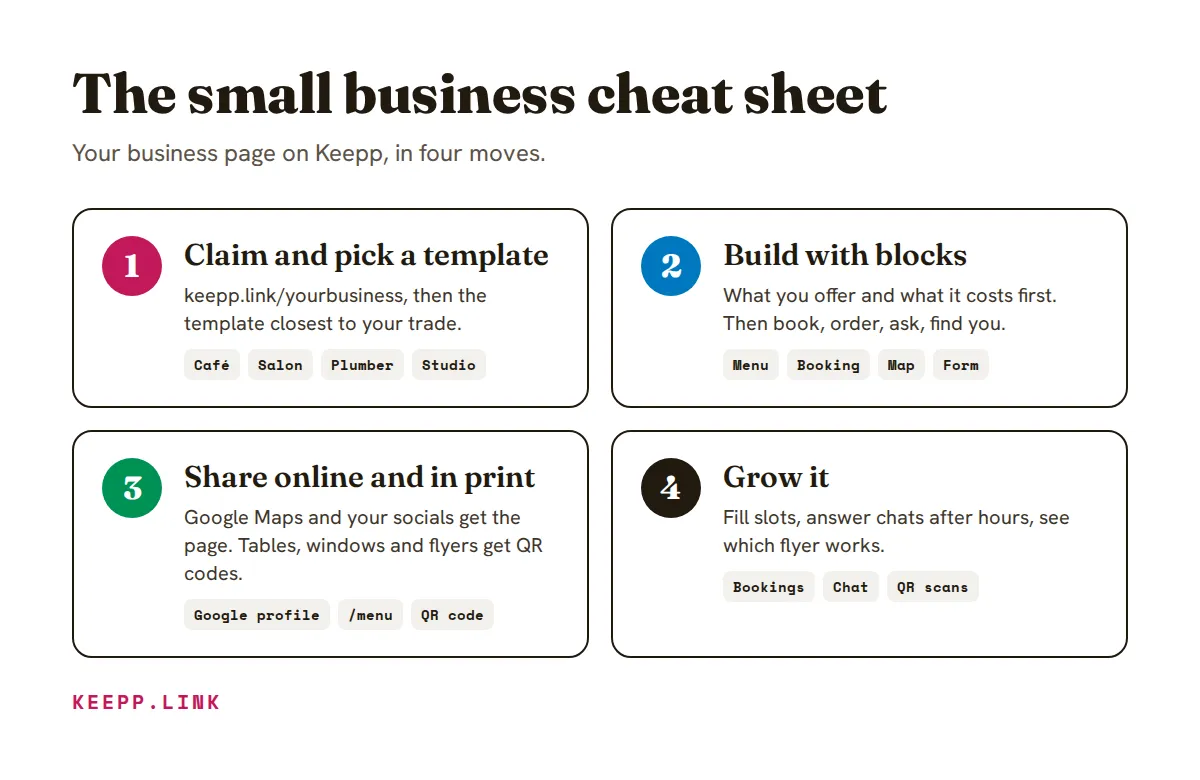
A small business website has three jobs: tell people what you offer and what it costs, make the next step one tap (book, order, ask, find you), and be reachable from everywhere customers already look, from Google Maps to the sticker on your door. This cheat sheet is the whole Keepp playbook for a business on one page: which template to start from, which block does what, where to put your links, and how to print QR codes and custom links that keep working. Keep it open while you build, and follow the links when you want the full steps.
Building a page for yourself as a creator instead? The link in bio cheat sheet for creators covers templates, giveaways and sharing a link for every post. Looking for a fix to one specific problem? See small business problems and solutions.
The 10-second version
| Step | What you do | Where in Keepp |
|---|---|---|
| 1. Claim | Sign in with Google or an email code, pick keepp.link/yourbusiness | keepp.link |
| 2. Start | Pick the template closest to your trade | The template step after you claim |
| 3. Build | Add your logo, services and prices, hours and map, and the way to book or order | Manage your page |
| 4. Publish | Press Publish; nothing changes for customers until you do | Top of the editor |
| 5. Share | Website field on Google, your socials, QR codes in the shop | Custom links, QR codes and digital card |
| 6. Grow | Take bookings and orders, answer chats, read what works | Bookings, Chat, Analytics |
Step 1: Pick the template that matches your trade
Every template is a finished page you replace with your own words and pictures. Pick by what customers do with you, not by colours; the look changes in a minute later.
| Your business | Start from | It leads with |
|---|---|---|
| Café, bakery or restaurant | Café & Bakery or Menu Board | The menu, opening hours and a map |
| Bar or venue | Bar | Drinks, events and where to find you |
| Salon, barber or nails | Hair & Beauty Salon or Barber Shop | Treatments, recent work, how to book |
| Massage, therapy or wellness | Massage & Wellness or Counselling & Therapy | What you offer and how a session runs |
| Plumber, cleaner or trades | Plumber & Home Repairs or Cleaning Service | Services, areas covered, a number to call |
| Studio or gym | Fitness Studio | Classes, coaches and the timetable |
| Florist or local shop | Florist & Local Shop | Products, delivery and where the shop is |
| Holiday rental or B&B | Holiday Rental | Rooms, house rules and the location |
| Events, catering or design | Event Planner, Caterer & Private Chef or Interior Design Studio | Past work and an enquiry form |
| Advisor or consultant | Financial Advisor | Who you help and a request for a first call |
| Tattoo studio | Tattoo Studio | Your work, flash days, consultation requests |
| Estate agent | Estate Agent | Listings and a valuation request |
| Club, charity or community | Community & Nonprofit | What you do and where you meet |
All templates are in the template gallery. Claim your page walks through the first steps.
Step 2: Which block to use for what
A Keepp page is a stack of blocks. Each does one job, so the question is always “what do I want the customer to do here?”
| You want customers to… | Use this block | Business example |
|---|---|---|
| Know who you are | Cover profile or Profile (circle) | Your shopfront photo or logo, name and one line |
| Reach you anywhere | Social icons | Instagram, Facebook, WhatsApp, your phone or email |
| Do the one main thing | Highlight button | ”Book a table” or “Call for a quote” |
| See what you offer and what it costs | Menu / services | A menu, a treatment list or a rate card, filterable by tags |
| Book a time or a stay | Booking | A haircut, a consultation, a room by the night |
| Buy or order | Product | A gift voucher, a cake order, a class pass |
| Send you a request | Form | Quote request, catering enquiry, job application, feedback |
| Find you | Map | Your pin, address and opening hours, with directions |
| Ask a question at any hour | Chat | An AI that answers from your page, and hands over to you |
| Notice news | Ticker | ”Closed Monday for the bank holiday” |
| See your work | Card: Showcase | Before and after photos, recent jobs |
| Use an offer | Card: Promo code | ”SPRING10 for 10% off” |
| Read more | Article | Aftercare, FAQs, your story |
| Join your list | Spotlight | A pop-up asking for an email for offers |
| Browse one group | Collection | All your products or all your services on a page of their own |
| Find their way around | Header, Nav tabs | ”Menu”, “Book”, “Find us” sections with tabs |
Prices you take, or prices you show. A product or booking can take payment through your own Stripe account, or show a price you collect yourself, in the shop or by invoice. Sell a product and Take bookings have the options. Choosing the right block covers every block.
The page order that works
| If you are… | Top to bottom |
|---|---|
| Somewhere people visit (café, shop, bar) | Profile, highlight (today’s news), menu, map with hours, socials, chat |
| An appointment business (salon, clinic, studio) | Profile, booking, services with prices, recent work, map, chat |
| A service that comes to you (trades, cleaning, catering) | Profile, highlight (“Get a quote”), services, areas covered, quote form, reviews or recent jobs |
People decide in the first screen: what you do, what it costs, and the button to act on it.
Step 3: Make it look like your business
| Setting | What it changes | Tip |
|---|---|---|
| Brand colour | Buttons, accents and links | Take it from your logo or signage |
| Background | A colour, a gradient or your own photo | Your interior or your food, with a veil so text stays readable |
| Font pairing | Headings and body text together | Match the feel of your menu or sign |
| Style preset | Corners, shadows and buttons in one tap | Try two or three, then tweak |
Style your page has every option. You can also describe the change and the editor makes it: “put the booking above the menu and use our green”. See Edit your page by asking.
Step 4: Know your way around the dashboard
| Section | What it’s for | When you’ll open it |
|---|---|---|
| Dashboard | Visits, sales, bookings and form replies at a glance | Every morning |
| Manage your page | The editor: blocks, layout, theme, publish | When prices, hours or offers change |
| Purchases and products | Products and every order | When orders come in |
| Bookings and appointments | What people can book, your calendar, every booking | Daily, if you take appointments |
| Forms and leads | Quote requests and enquiries, with tags, notes and export | Daily |
| Chat and messages | Customer conversations, answered by AI or by you | When one needs you |
| Connectors | Stripe, Google Calendar, Zoom, Telegram, your own domain | Once, at setup |
| Analytics | Visits, clicks, where people come from, QR scans | Weekly |
| Custom links | Short links like keepp.link/yourbusiness/menu | Before you print anything |
| QR codes and digital card | Printable QR codes and your digital visiting card | Before you print anything |
| AI automation | Build and change the page from Claude or ChatGPT | When you’d rather ask than click |
Connect Google Calendar once and the times you’re already busy can’t be booked. Connect Stripe once and payments for bookings and orders go straight to your own account.
Step 5: Share your links online
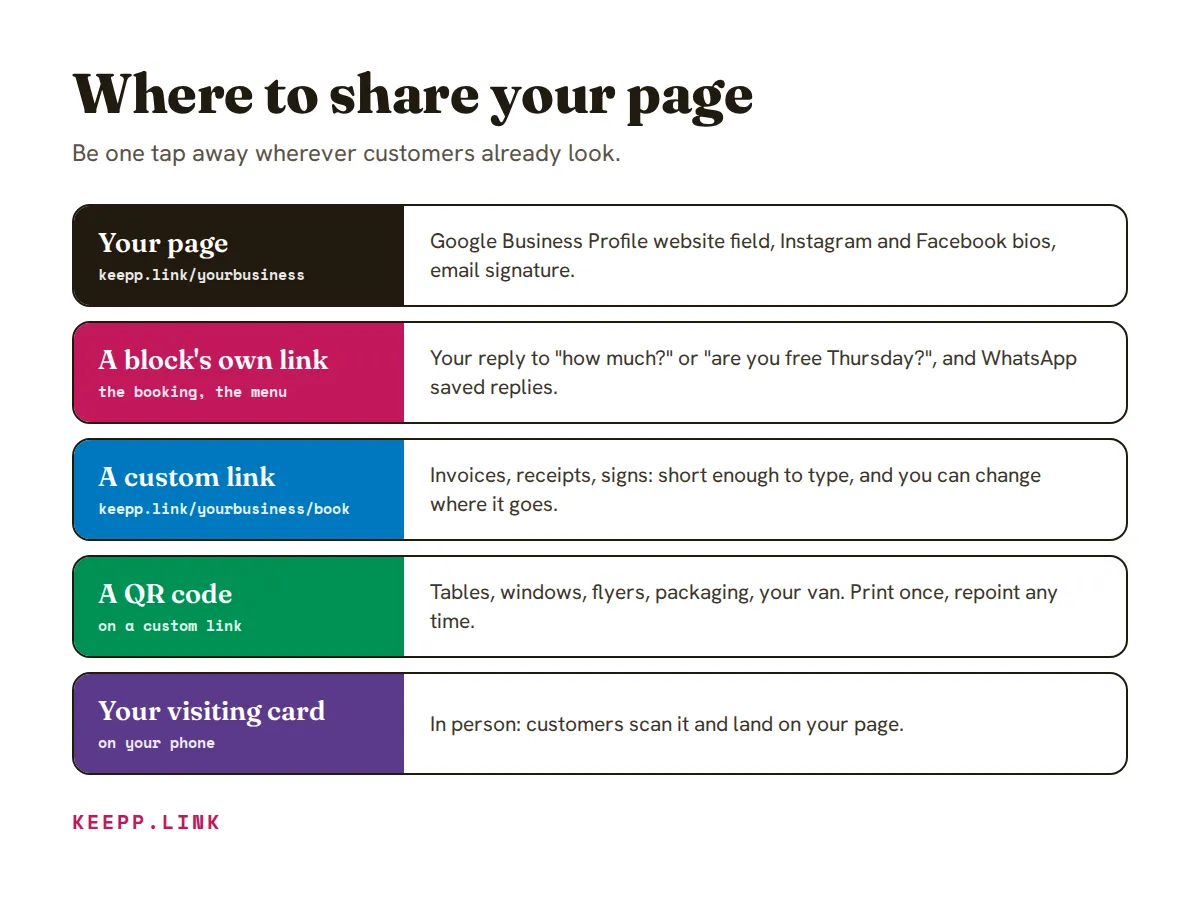
Your page has one address, keepp.link/yourbusiness. Everything on it that opens, like your menu, a booking, a product, the quote form or the chat, also has a link of its own. That link opens straight on that one thing, and a preview in a message shows that thing, not your homepage.
Why it matters: a customer who asked “can I book Thursday?” should land on the booking calendar, not scroll your whole page looking for it. Share a product, booking or chat as its own link shows how to get one.
| Where | Which link |
|---|---|
| Google Business Profile website field | Your page. It’s the most valuable click you get: someone who found you on Maps and wants one more look before they visit or call. See the Google Maps website link |
| Google Business Profile booking or menu link, where your category has one | The booking’s or the menu’s own link |
| Instagram, Facebook, TikTok bio | Your page |
| A reply to “how much?” or “are you free?” | The menu’s or the booking’s own link |
| WhatsApp Business profile and quick replies | Your page, and the booking link as a saved reply |
| Email signature, invoices, receipts | Your page, or a custom link like /book |
| Your own domain | Connect yourbusiness.com to the same page when you’re ready. See Connect your own domain |
Step 6: Print QR codes and custom links that keep working
This is where a business page earns its keep. Every table, window, flyer and van is a way onto your page.
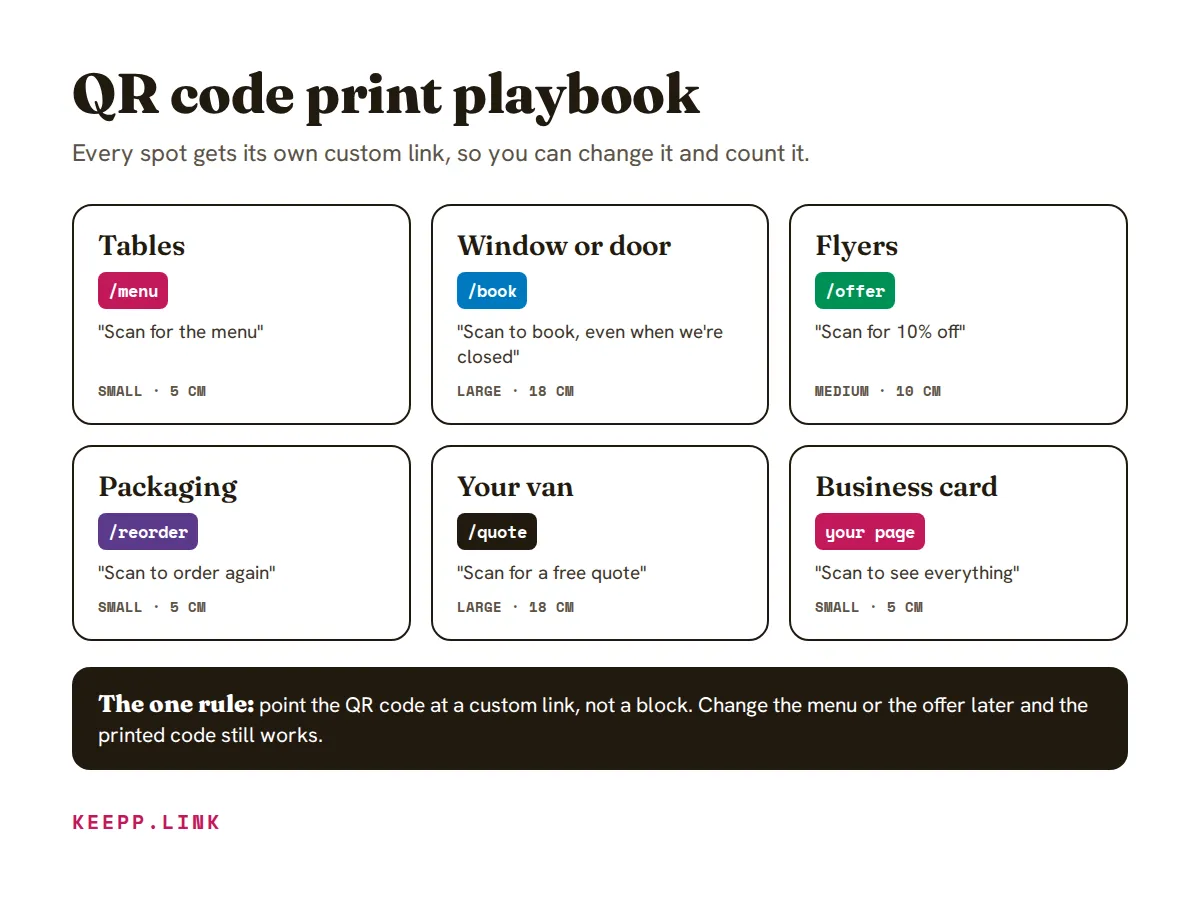
The one rule: before you print a QR code, point it at a custom link, not straight at a block. A custom link like keepp.link/yourbusiness/menu can be pointed somewhere else later, so the printed code never goes out of date. Change the menu, swap the offer, move the booking: the sticker on the door keeps working. Dynamic QR codes explains why.
What to print, where
| Put it on… | Custom link | Opens | Size | Caption |
|---|---|---|---|---|
| Tables and the counter | /menu | Menu | Small, 5 cm | ”Scan for the menu” |
| Your window or door | /book | Booking | Large, 18 cm | ”Scan to book, even when we’re closed” |
| Flyers and posters | /offer | The offer card or product | Medium, 10 cm | ”Scan for 10% off” |
| Packaging and receipts | /reorder | The product, or a feedback form | Small, 5 cm | ”Scan to order again” |
| Your van or a sign | /quote | Quote form | Large, 18 cm | ”Scan for a free quote” |
| Business cards and events | Your page | The whole page | Small, 5 cm | ”Scan to see everything” |
How to make one:
- Open Custom links and make the link, like
menu. - Open QR codes, choose that link under Opens, and pick dots, corners and colour. Your brand colour and logo are already in it.
- Turn on Frame with a caption and write what scanning does.
- Download the SVG for a printer, or the PNG for posts, or tap Print at the size above.
- Print one, scan it from where customers will stand, then print the batch.
Make and print a QR code has every option.
Custom link tricks for a business
- Readable on a sign.
keepp.link/rosies/bookcan be typed by someone who can’t scan. - One link per place you advertise. Make
/flyer-parkand/flyer-station, both opening the same offer. The Custom links and QR code scans panels in Analytics count each one, so you know which flyer actually brought customers. - Seasonal without reprinting. Point
/offerat the summer menu in June and the Christmas bookings in November.
Create custom links has the steps, and Track QR code scans shows what the numbers tell you.
Step 7: Grow it
| Goal | Do this |
|---|---|
| Fewer phone calls about prices | A Menu / services block with every price, and its link as your reply to “how much?” |
| Fill quiet slots | A Booking with your real availability; customers can reschedule or cancel themselves, and you get an email when they do |
| Stop no-shows | Take payment when they book, through your own Stripe account |
| Answer questions after hours | Chat: the AI answers from your page, and the ones that need you reach your phone on Telegram. See answering questions after hours |
| Win quote work | A Form asking what, where and when, with tags and notes for each request in Forms and leads |
| Bring people back | A Spotlight asking for an email for offers, and a Promo code card for returning customers |
| Announce changes | A Ticker for holiday hours or today’s special; schedule it to disappear when it’s over |
| Hand out your page in person | Your digital visiting card on your phone, with a QR code people scan (add it to your wallet) |
Read the numbers once a week
Open Analytics and check three panels: most clicked blocks (move the winner up), where visitors came from (Google, Instagram or your print), and QR code scans (which table, window or flyer works). Understand your analytics explains every panel.
Why small businesses run their page on Keepp
A website builder gives you pages, then sends you off to add a booking tool, a shop, a form tool and a chat widget, each with its own login and bill. On Keepp those are blocks on one page:
- The tools are built in. Menu, bookings, orders, forms, map and chat share one page, one look and one dashboard.
- The money is yours. Bookings and orders are paid into your own Stripe account; you’re the merchant of record.
- Print once, change any time. Every block has its own link and QR code, and custom links let you repoint a printed code.
- It grows with you. Add more pages with a menu, articles and collections, and put it on your own domain.
FAQ
What should a small business website have?
What you offer with prices, how to book, order or ask for a quote, your hours and location with directions, and a way to reach you. Put those in the first screen and most visitors have what they came for.
How do I make a QR code that I can change after printing?
Make a custom link first, like keepp.link/yourbusiness/menu, and make the QR code for that link. When the menu or offer changes, point the custom link somewhere else; the printed code keeps working.
What link should I put on my Google Business Profile?
Your page’s address in the website field, because it’s where people go just before they visit or call. If Google offers a booking or menu link for your category, use that block’s own link there.
Where should I put QR codes for my business?
Wherever someone has a question at that moment: the menu on tables, booking on the window, the offer on flyers, reordering on packaging, a quote on your van. Give each spot its own custom link so you can see which one works.
Can customers book and pay on my page?
Yes. A booking block shows your real availability, takes payment through your own Stripe account if you want it, and lets customers reschedule or cancel themselves.
How to start
- Claim your page at keepp.link and pick a template from the table above.
- Add your prices, hours, map and the way to book or order, then press Publish.
- Put the link in your Google Business Profile and your bios, then make a custom link and QR code for every place you’d print one.
Like what you read? Add Keepp as a preferred source on Google to see more of our posts in your search results.