Link in Bio Cheat Sheet for Creators: Set Up, Share, Grow
The one-page Keepp cheat sheet for creators: the template and blocks to use, which link to share where, and tips for giveaways, custom links and QR codes.
Part of the link in bio guide: What is a link in bio? The complete guide
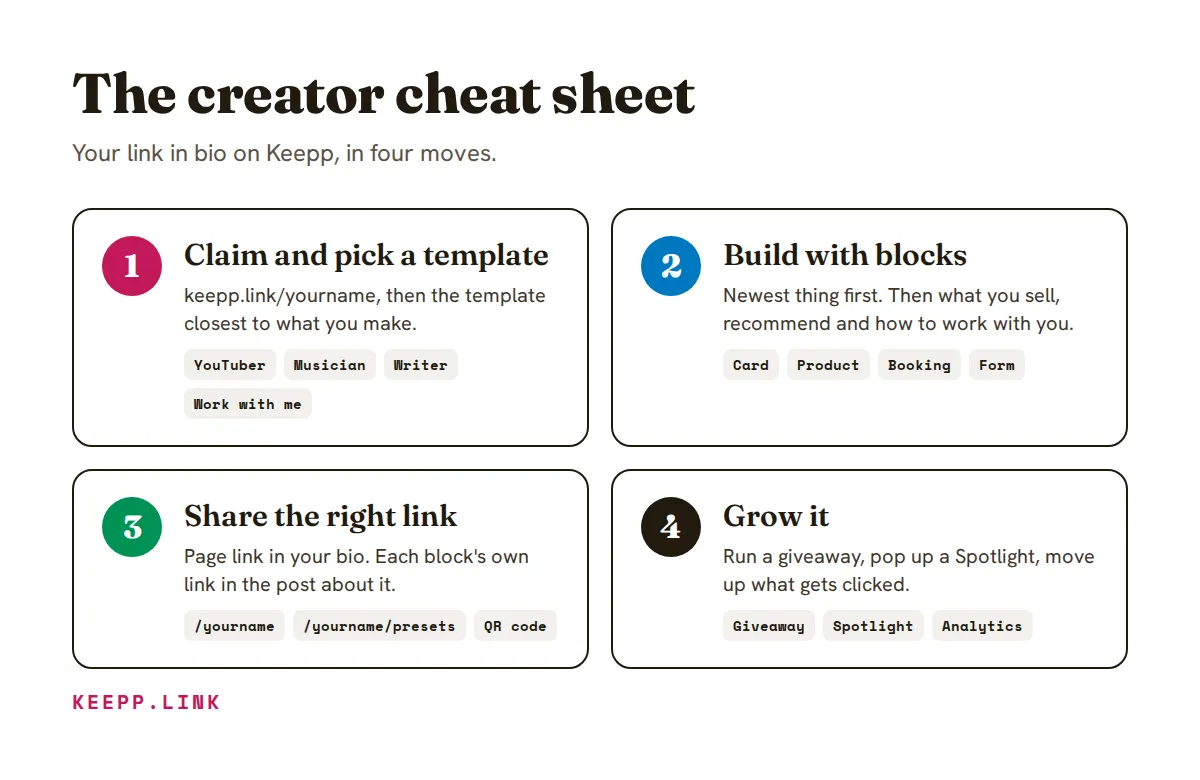
A creator’s link in bio works when it does three things: shows who you are in one screen, puts your newest thing at the top, and gives every post a link that lands on exactly what that post was about. This cheat sheet is the whole Keepp playbook for creators on one page: which template to start from, which block to use for what, which link to share where, and the moves that grow an audience, like giveaways and custom links. Keep it open while you build, and follow the links when you want the full steps.
Running a business rather than a creator profile? The small business website cheat sheet covers menus, bookings, Google Maps and printing QR codes. Looking for a fix to one specific problem? See content creator problems and solutions.
The 10-second version
| Step | What you do | Where in Keepp |
|---|---|---|
| 1. Claim | Sign in with Google or an email code, pick keepp.link/yourname | keepp.link |
| 2. Start | Pick the template closest to what you make | The template step after you claim |
| 3. Build | Swap in your photo, socials and newest thing; add blocks as you need them | Manage your page |
| 4. Publish | Press Publish; nothing changes for visitors until you do | Top of the editor |
| 5. Share | Page link in your bio; a block’s own link in each post | Share on any block, Custom links |
| 6. Grow | Run a giveaway, add a Spotlight, read what gets clicked | Forms and leads, Analytics |
Step 1: Pick the template that matches what you make
Every template is a finished page you replace with your own words and pictures. Pick by what you want visitors to do, not by colours; the look changes in a minute later.
| You are a… | Start from | It leads with |
|---|---|---|
| YouTuber or podcaster | YouTuber & Podcaster | Latest episodes and what the show is about |
| Musician | Musician | New release, shows and videos |
| DJ or performer | DJ & Performer | Where you play, mixes, how to book you |
| Fashion or beauty creator | Fashion & Beauty Creator | Current picks and favourite products |
| Travel creator | Travel Creator | Guides and trips |
| Fitness creator or coach | Fitness Coach | Programmes, results, how to start |
| Writer or newsletter | Writer & Newsletter | Essays and a newsletter sign-up |
| Artist or illustrator | Artist & Illustrator | A gallery and a note on commissions |
| Photographer | Photographer | Portfolio and a booking form |
| Coach, tutor or expert | Coach & Consultant or Tutor & Teacher | What you help with and your packages |
| Open to brand deals | Work With Me | A short pitch and an enquiry form up top |
| Just want links | Just the Links | A clean stack of links |
All templates are in the template gallery. Claim your page walks through the first steps.
Step 2: Which block to use for what
A Keepp page is a stack of blocks. Each one does one job, so the question is always “what do I want people to do here?”
| You want people to… | Use this block | Creator example |
|---|---|---|
| Know who you are | Profile (circle) or Cover profile | Your face, name and one line: “I review budget tech every Friday” |
| Follow you elsewhere | Social icons | Instagram, TikTok, YouTube, plus your phone or iMessage if you take enquiries |
| Do the one main thing | Highlight button | ”Watch the new video” |
| Open a link | Link (as a pill or an image card) | Your podcast on Spotify |
| See what you recommend | Card: Affiliate link | The camera you use, with your affiliate link |
| Use your discount | Card: Promo code | ”SAM15 for 15% off”, copied on tap |
| See your work | Card: Showcase | A gallery of your best shots |
| Buy from you | Product | A preset pack, an ebook, merch, delivered automatically after payment |
| Book you | Booking | A 1:1 call, a coaching session, a portfolio review |
| Sign up or enter | Form | Newsletter, giveaway entry, brand enquiry |
| Read something longer | Article | Your gear list, a guide, show notes |
| Watch on the page | YouTube | Your latest upload |
| Notice news | Ticker | ”New merch drop Friday 6pm” scrolling across your page |
| Ask you a question | Chat | An AI that answers from your page, with you taking over on Telegram |
| Get one invite | Spotlight | A pop-up asking people to join your list or enter the giveaway |
| Browse one group | Collection | Every product on a page of its own, linked from one card |
| Find their way around | Header, Subheader, Nav tabs | ”Shop”, “Watch”, “Work with me” sections with tabs at the top |
Pill or card? A pill is a plain button, fine for “My podcast”. A card carries a picture, a description, a price or promo code and its own button, so it gets noticed. Use cards for anything you want tapped.
Two side by side. Set two blocks to half width and they sit next to each other, which suits pairs like “Shop” and “Book a call”. Choosing the right block covers every block in more detail.
The creator page that works
Top to bottom, in this order:
- Profile: face, name, one line on what you make.
- Social icons.
- Highlight button or card: the newest thing. Change it every time you post something big.
- What you sell or recommend: products, affiliate cards, promo codes.
- Work with me: a booking or an enquiry form for brands.
- Everything else: older links, an article, the newsletter.
People decide in the first screen, so the newest thing goes above everything that isn’t you.
Step 3: Make it look like you
You set the look once for the whole page, so every block matches.
| Setting | What it changes | Tip |
|---|---|---|
| Brand colour | Buttons, accents and links | Take it from your channel art or logo |
| Background | A colour, a gradient or your own image | A photo background suits travel and music pages |
| Font pairing | Headings and body text together | Pick one and leave it |
| Style preset | Corners, shadows and buttons in one tap | Try two or three before you tweak by hand |
Style your page has every option. You can also describe a change and the editor makes it: “move the shop above the videos and make the buttons round”. See Edit your page by asking.
Step 4: Know your way around the dashboard
The left side of your dashboard is split into what you run and how you grow.
| Section | What it’s for | When you’ll open it |
|---|---|---|
| Dashboard | Visits, sales, bookings and form replies at a glance | Every day you post |
| Manage your page | The editor: blocks, layout, theme, publish | Whenever your newest thing changes |
| Purchases and products | Your products and every order | After a launch |
| Bookings and appointments | What people can book, your calendar, every booking | Each week |
| Forms and leads | Every form reply and subscriber, with tags and export | Giveaways, brand enquiries, your list |
| Chat and messages | Conversations from your page | When the AI hands one to you |
| Connectors | Stripe, Google Calendar, Zoom, Telegram, your own domain | Once, when you set up |
| Analytics | Who visits, where they come from, what they click | Weekly |
| Custom links | Short, readable links to anything on your page | Before you post |
| QR codes and digital card | Printable QR codes and your digital visiting card | Before events and meetups |
| AI automation | Build and change the page from Claude or ChatGPT | When you’d rather ask than click |
Step 5: Share the right link in the right place
Your page has one address, keepp.link/yourname. Everything on it that opens, like a product, a card, a booking, a form, an article or the chat, also has a link of its own. That link opens straight on that one thing, and the preview in a message shows that thing’s picture and title, not your homepage.
Why it matters: someone who taps from a video about your preset pack should land on the preset pack, not on your profile with fifteen other links. Fewer taps, more buys. Share a product, booking or chat as its own link shows how to get one.
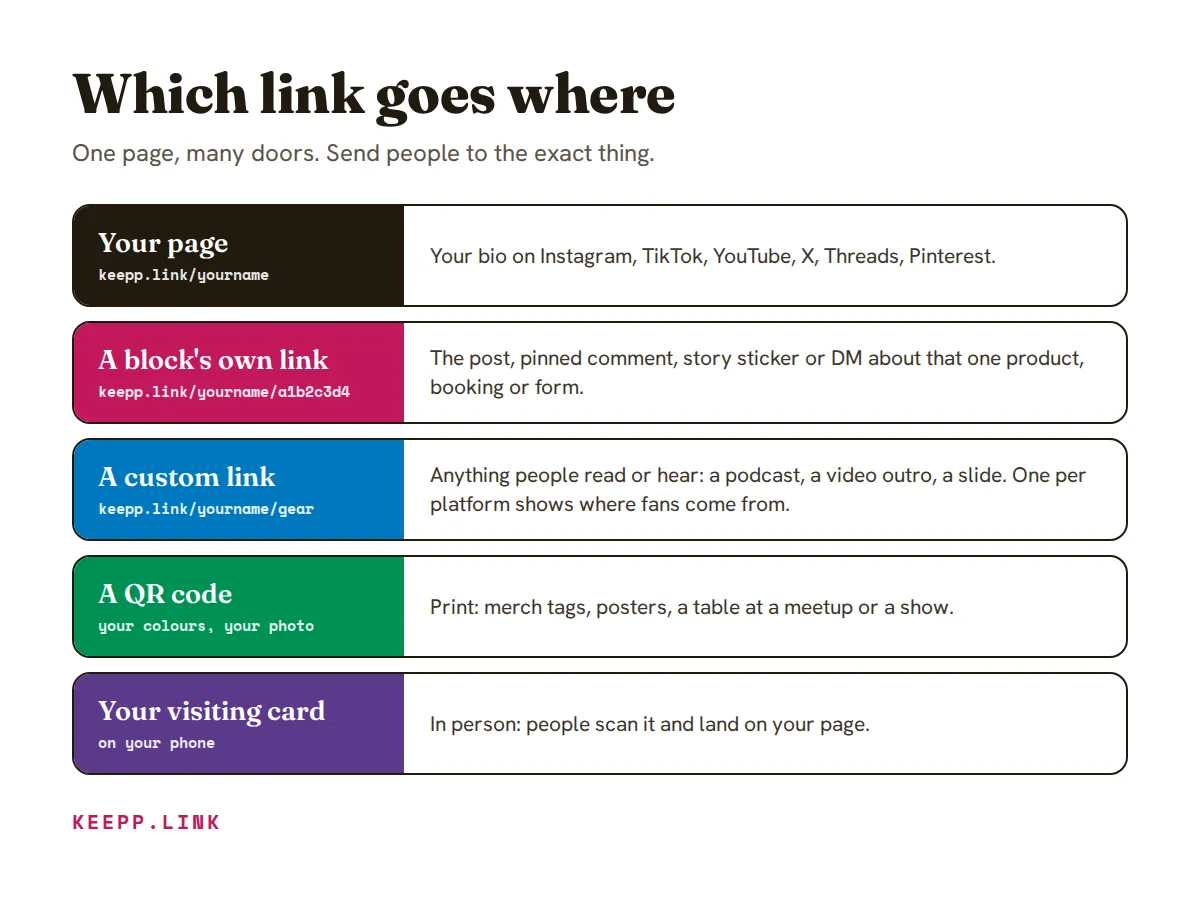
The four kinds of link
| Link | Looks like | Use it when |
|---|---|---|
| Your page | keepp.link/yourname | Your bio on every platform |
| A block’s own link | keepp.link/yourname/a1b2c3d4 | A post, a pinned comment, a DM, a story sticker |
| A custom link | keepp.link/yourname/presets | People have to read it, say it or type it: a podcast, a slide, a video outro |
| A QR code | Your colours, your photo, a caption | Print: merch tags, posters, a table at a meetup |
Platform by platform
| Platform | Page link | A block’s own link |
|---|---|---|
| Your bio | Story link sticker; a DM to someone who asked | |
| TikTok | Your bio | A DM to someone who asked |
| YouTube | Channel links | Description and pinned comment: the exact product you show |
| X | Your bio | In the post itself, so the preview shows the product |
| Your profile | Each pin’s destination: the one product it shows | |
| Threads | Your bio | In the post |
| Podcast | Show notes | Say a custom link out loud: “keepp.link/yourname/deal” |
| Newsletter | Footer | The button for what this issue is about |
Custom links: the creator’s secret weapon
A custom link is a name you choose, like keepp.link/yourname/presets, that opens any block on your page, or the page itself. Three ways creators use them:
- Say it out loud. “Link’s at keepp.link/sam/gear” works in a video or podcast; a code like
a1b2c3d4doesn’t. - Keep it forever, change what it opens. Put
keepp.link/sam/newin every video outro and point it at whatever is newest. Old videos keep sending people to your latest thing. - See which platform sends people. Make
/yt,/igand/tt, all opening your page, and use one per platform. The Custom links panel in Analytics counts each one, so you know where your audience really comes from.
Create custom links has the steps.
Step 6: Grow it
Run a giveaway on your page
A giveaway on your own page gives you something a comment giveaway never does: every entrant’s email, yours to keep.
| Step | How |
|---|---|
| 1. Entry form | Add a Form with name, email and one question (“Which colour do you want?“) |
| 2. One person, one entry | Turn on Verify by email on the email field, so only entries from real addresses count |
| 3. Open and close on time | Schedule the block with a start and an end; it leaves the page by itself when entries close |
| 4. Make it seen | A Ticker with the deadline, and a Spotlight that pops up with a button to the entry form |
| 5. One link to post | A custom link like keepp.link/sam/win in every post, story and video about it |
| 6. Pick a winner | Open Forms and leads, export the entries and draw from the list |
Afterwards the entrants are already in your list, which is the real prize for you. Stop duplicate giveaway entries goes deeper.
More creator moves
| Goal | Do this |
|---|---|
| Grow your email list | A Spotlight set to Subscribe: it pops up once after 20 seconds or when someone goes to leave, and every sign-up lands in Forms and leads |
| Launch a drop | Add the Product now, schedule it to appear at launch time, and tease it with a Ticker |
| Earn from recommendations | Affiliate and Promo code cards, each with its own link for the post that mentions it |
| Get paid for your time | A Booking for calls or reviews; it takes payment as they book, into your own Stripe account |
| Land brand deals | A “Work with me” Form asking budget, dates and deliverables |
| Answer the same DMs once | Chat: the AI answers from your page, and the questions it can’t answer come to you |
| Hand out your page in person | Your digital visiting card on your phone, with a QR code people scan (add it to your wallet) |
Read the numbers once a week
Open Analytics and look at two things: most clicked blocks (move the winner up) and where visitors came from (post more where it works). If a block near the top gets no clicks, swap it for your newest thing. Understand your analytics explains every panel.
Why creators run their link in bio on Keepp
Most creators end up with a link-in-bio app, a store, a booking tool, a form tool and a newsletter sign-up, each with its own login. On Keepp they are blocks on one page you control, sharing one look and one dashboard:
- Every link lands on the thing. Each product, booking and form has its own link, custom name and QR code.
- The money is yours. Sales and paid bookings go through your own Stripe account.
- The audience is yours. Giveaway entrants, subscribers and chat emails stay in your dashboard, not inside a platform.
- It grows into a website. Add a menu, articles and collections, and connect your own domain when you’re ready.
FAQ
What should a creator put in their link in bio?
Your photo and one line about what you make, your social icons, your newest thing at the top, then what you sell or recommend and how to work with you. Keep the first screen to what someone needs in the next ten seconds.
What is the best link in bio layout for creators?
Profile, social icons, one highlight for the newest thing, then products or affiliate cards, then a booking or enquiry form, then older links. Newest first, because people decide in the first screen.
How do I link to one product instead of my whole page?
Open the product on your live page and tap Share. You get a link that opens straight on that product, with its picture and price in the preview. Put it in the post, story or comment that mentions the product.
How do I see which platform my visitors come from?
Look at where visitors came from in Analytics, or make one custom link per platform, like /yt and /ig, all opening your page. The Custom links panel counts each one separately.
Can I run a giveaway from my link in bio?
Yes. Add a form with a verified email field, schedule it to open and close, promote it with a Spotlight and a ticker, and share one custom link. Entries land in Forms and leads, where you can export them to draw a winner.
How to start
- Claim your page at keepp.link and pick a template from the table above.
- Put your newest thing at the top, add the blocks you need, and press Publish.
- Put your link in your bio, then share each block’s own link wherever you post about it.
Like what you read? Add Keepp as a preferred source on Google to see more of our posts in your search results.