How Online Bookings Actually Work: Availability, Payment, and No Double-Booking, in One Flow
Real availability, calendar sync that prevents double-booking, and payment collected at the moment someone books, how to manage bookings and payments in one place, mechanically.
Someone wants time with you. Right now that probably means a back-and-forth: “What time works?” “I’m free Tuesday after 2.” “I have someone at 2, does 3 work?” Five messages to land on one time slot, and that’s before you’ve written it down anywhere reliable, and before you’ve figured out how to actually get paid for it.
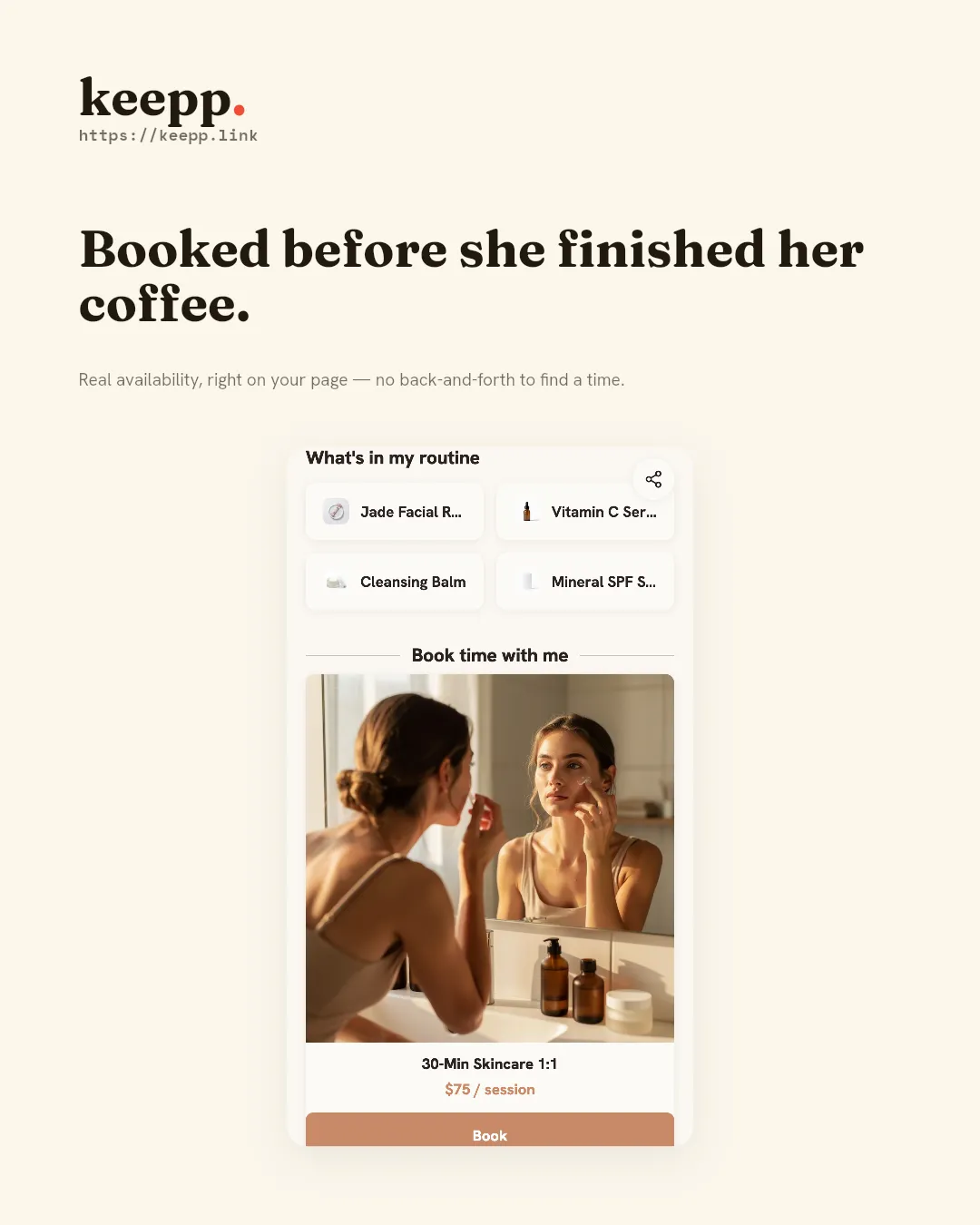
Booking online replaces that whole exchange with one page: here’s when I’m actually free, pick a time, pay if payment is required, done. See the bookings use case for what that looks like end to end, or keep reading for how it works, mechanically.
Why bookings and payment need to live in the same place
Most of the friction in “taking bookings” isn’t the calendar part. It’s that scheduling and payment usually live in two different tools that don’t talk to each other. You book the call in one app, then separately send an invoice or a PayPal link, and now you’re tracking who’s actually paid against who’s on the calendar. Someone books a slot, doesn’t pay, and you find out the day of. Someone pays, but the booking never got confirmed on your end.
The fix isn’t a better invoicing tool bolted onto your calendar. It’s a booking flow where availability, confirmation, and payment are one action instead of three. A visitor picks a time, pays right there if payment applies, and the booking only exists once both are done. There’s nothing to reconcile afterward, because there was never a gap between “booked” and “paid” for it to fall into.
Real availability, not a guess
A booking only works if what it shows is true. That means two things have to be accurate at once: the hours you’re generally open to booking, and the specific slots that are already taken.
The second one is the part that breaks most DIY setups. You say you’re free 9 to 5, someone books a slot, and it’s not actually reflected anywhere except your head. The next person books the same time. Now you’re cancelling on someone.
Connecting your Google Calendar fixes this at the source: your calendar syncs in, existing events block those times automatically, and a new booking is only offered as a slot if nothing conflicts with it. Nobody can book a time you’re already busy, because busy isn’t guesswork. It’s read straight from your calendar. That’s also what “syncing online bookings” actually means in practice: it’s not a one-time import, it’s a live connection that checks your calendar every time someone loads your availability, so a meeting you added yesterday blocks a slot someone tries to book today.
Two shapes of booking, because not everything is a time slot
Not every booking is “pick an hour.” A consulting call is a slot with a duration: 30 minutes, starting on the hour. A stay at a rental or a multi-day retreat is a date range: check-in, check-out, no fixed duration at all. Booking needs to handle both without forcing one shape onto the other, so a slot-based appointment and a night-based stay each get their own picker: a time-of-day grid for one, a from/to calendar for the other. The taking bookings how-to walks through setting up either type on a block.
What happens the moment someone books
A visitor picks a time, fills in their name, email, and phone, and confirms. From there:
- The slot is held, so two people can’t grab the same time while one of them is mid-checkout.
- If your calendar is connected, the appointment writes straight to it, no manual re-entry, no risk of it living in one place but not the other.
- If you need a video link, one gets generated automatically per booking: a Google Meet link if that’s your calendar connector, or a Zoom meeting if you’ve connected Zoom instead. Neither requires you to create the link yourself and paste it into a confirmation email.
- If you take payment for the booking, that happens right there in the same flow. See below.
- The customer gets a confirmation with a manage-booking link, so they can look up or reschedule their own appointment without emailing you to ask “what time did I book again?”
Payment at the time of booking
Some bookings need to be paid for up front: a session, a table deposit, a spot in something with limited capacity. That payment happens as part of the same booking flow, through your own connected Stripe account, not through a separate PayPal link, invoice, or manual follow-up. The customer pays when they confirm the time; you don’t have to separately invoice or chase payment after the fact.
This is worth being specific about, because “appointment scheduling with payment” often gets solved by bolting a PayPal button onto a confirmation email, which works, technically, but breaks the moment someone doesn’t finish the second step. Here, a booking that requires payment and a booking that’s actually paid for are the same event: the slot isn’t confirmed until the charge goes through, in the same flow, on the same page. If you haven’t connected Stripe yet, here’s what that setup looks like. It’s a Stripe account you own, not a balance Keepp holds and pays out later. You’re the merchant of record; payouts and refunds happen in your own Stripe dashboard.
Not every booking needs payment attached. A free consultation, an intro call, a walk-in reservation: plenty of appointments are just about the time, and the booking works exactly the same way without a payment step. You can also run both side by side on the same page: a free discovery call as the low-commitment entry point, and a paid session for people who are already sold. A booking page for coaches and consultants covers that exact split in more detail.
Deposits, no-shows, and cancellation terms
An empty slot on a service business’s calendar is lost income, not something that carries over, which is why payment-at-booking matters more for time-based businesses than it does for most product sales. If you’re a coach, a consultant, a stylist, or anyone whose calendar is the product, a booking that requires payment up front filters out the no-shows that a free “just RSVP” flow doesn’t catch. Every offering has a place for cancellation and refund terms, shown to the customer before they confirm, so your policy is set once and applied consistently instead of negotiated in a DM after someone’s already missed the slot.
Rescheduling and cancelling without the group chat
Bookings change. Someone needs a different time, or can’t make it at all. Because the confirmation includes a manage-booking link tied to that specific appointment, the customer can reschedule or cancel it themselves, and if you have a calendar or video link connected, that gets updated or removed along with it. You’re not manually hunting down a calendar event and a Zoom link every time a booking shifts, and you’re not the one fielding “can I move this to Thursday?” as a message you have to act on by hand.
What this looks like for different kinds of businesses
A consultant or coach runs mostly on 30- or 60-minute slots: a free discovery call to qualify a prospect, a paid session for existing clients. Both live on the same page as separate booking offerings. Booking page for coaches and consultants covers packages, repeat clients, and how a paid 1:1 differs from a one-off call.
A restaurant or studio taking table or class reservations needs the payment step to be optional per booking (a deposit on a large party, nothing at all for a walk-in slot) and benefits from showing hours and location right on the same page as the booking block. Adding a map and showing your location and hours cover the context that usually sits next to a reservation, and if you also take orders rather than just reservations, taking food orders online covers that adjacent case.
A personal trainer or fitness coach mixes single sessions with prepaid packages, usually on a recurring weekly schedule. A booking page for personal trainers and fitness coaches covers packages, buffer time, and video links for hybrid or remote coaching.
A salon or spa needs a service menu with real per-service durations and a deposit that actually deters no-shows. A booking page for salons and spas covers deposits, buffer time, and showing your work before someone books it.
A rental or multi-day retreat runs on the date-range picker instead of the time-slot one: check-in to check-out, priced as a stay rather than an hour. The booking and payment mechanics are the same underneath; only the picker shape changes. Taking bookings for vacation rentals and retreats covers minimum-night settings and how blackout dates keep the calendar accurate.
A service business with multiple staff or locations gives each staff member or location their own booking offering on the same page: each tracks its own bookings independently, so one staff member being booked at 2pm has no bearing on another’s availability at the same time.
Where this fits on your page
A booking is a block like any other on your page. It sits next to your products, your links, whatever else you show. Someone doesn’t need to leave your page and go find a separate scheduling tool; they see what you offer, and if one of those things is bookable, they book it right there. If you also sell things that aren’t time-based (a product, a downloadable, a package someone buys once and books sessions against later) selling products and digital downloads covers that side, and choosing the right block helps decide what belongs where on a page that does more than one job. Scheduling a block is also useful if you want an offering to only appear during a specific window, like a limited-time booking slot for an event.
If people aren’t ready to book yet but you don’t want to lose them, a form block sitting next to your booking block can capture their name and email as a lead instead, see collecting leads and feedback, so a “not right now” visitor doesn’t just disappear. A page that mixes a booking block with products, cards, and forms is exactly what we mean by a mini website rather than a single-purpose scheduling tool, and structuring a long page covers how to lay all of it out once you’ve got more than one or two blocks.
Put your booking page in your link in bio on Instagram or TikTok, and people can book a time from your profile in one tap.
Common questions
Can I use PayPal instead of Stripe for booking payments? Booking payments run through Stripe, connected directly to your own account. That’s what lets the payment and the booking confirmation happen as one step instead of two. Get paid your way covers the different ways money can move through a Keepp page, including options that don’t require a checkout at all, and PayPal appointment scheduling covers the fee difference in more detail.
What if I use more than one calendar? Connect the one you actually keep current. A booking page only prevents conflicts against the calendar it’s reading from, if you’re splitting appointments across two calendars that don’t sync with each other, that’s the same double-booking risk as not connecting one at all.
Does the video link work for both Zoom and Google Meet? Yes: whichever you’ve connected generates automatically per booking, with no separate step to create and paste the link yourself.
Can someone book without creating an account? Yes. A visitor gives their name, email, and phone at the time of booking; there’s no login required on their end, and their manage-booking link is how they look up or change what they booked afterward.
What if I only want free bookings, no payments at all? That’s the default state, not a workaround: a booking offering with no payment attached works exactly the same as one that requires payment, minus the payment step.
Claim your page, add a booking block, and connect your calendar: free to start, no credit card required.