A Link in Bio With Multiple Pages, Built From the Blocks You Already Have
On Keepp, tapping a product, a booking, a form or a menu opens it as a full page with its own link, and a menu in the corner takes visitors home or on to anything else on your page.
A link in bio page starts out as one page, and for a while that’s all it needs. Then you add your menu, a couple of products, a booking for consultations and a contact form, and that one page is quietly doing the job of a small website.
So now it works like one. Tap a product, a booking, a form, a menu, a map, a video or a card on a Keepp page, and it opens as a page of its own, at its own link. A menu button in the top corner lists everything on your page, so visitors can always get back home or move on to the next thing.
Every block that opens gets its own page
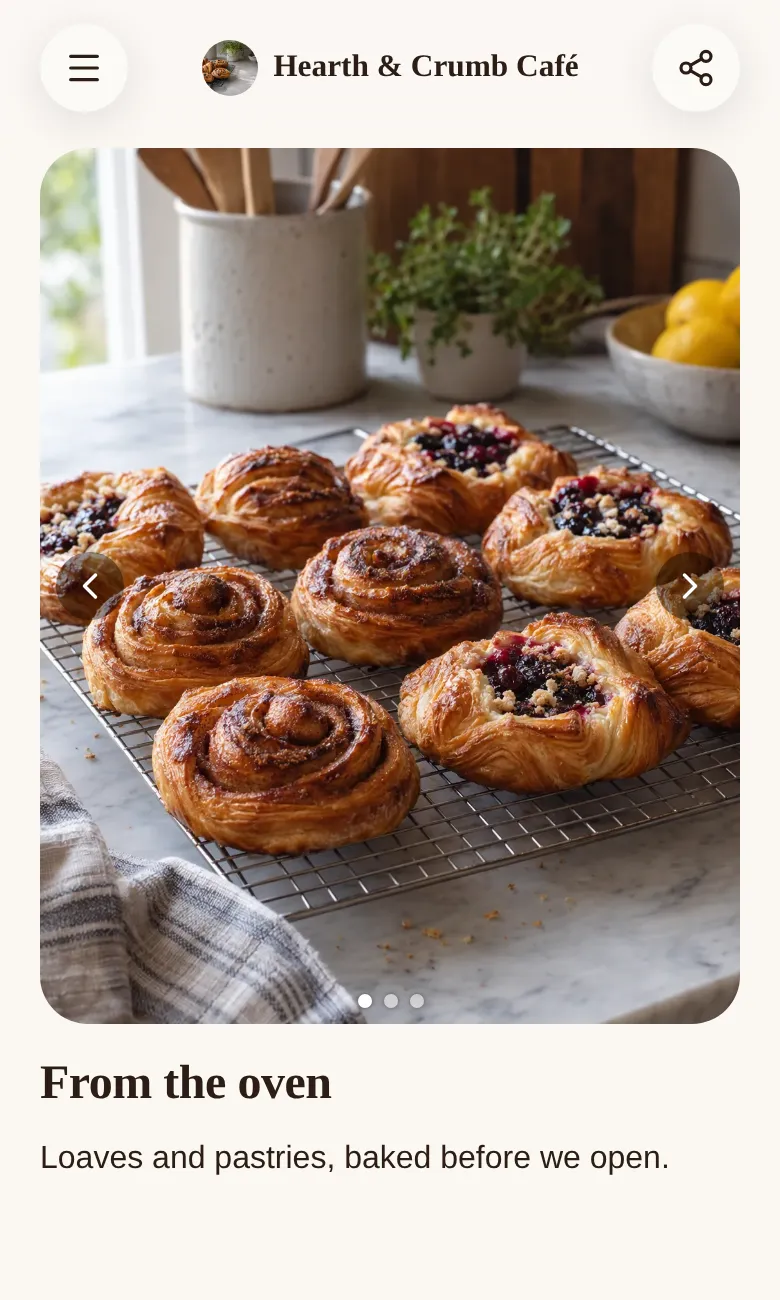
When someone taps one of these blocks, the rest of your page steps aside and the block fills the screen. Your name and photo sit at the top, so a visitor always knows whose page they’re on, even if they arrived from a link someone forwarded them.
Whatever the block does, it does right there. A product has its checkout on its page, and the money goes straight into your own Stripe account. A booking shows your open times and takes the booking. A form collects the answer, and a map opens as a full map someone can drag around, with your hours next to it.
The menu builds itself
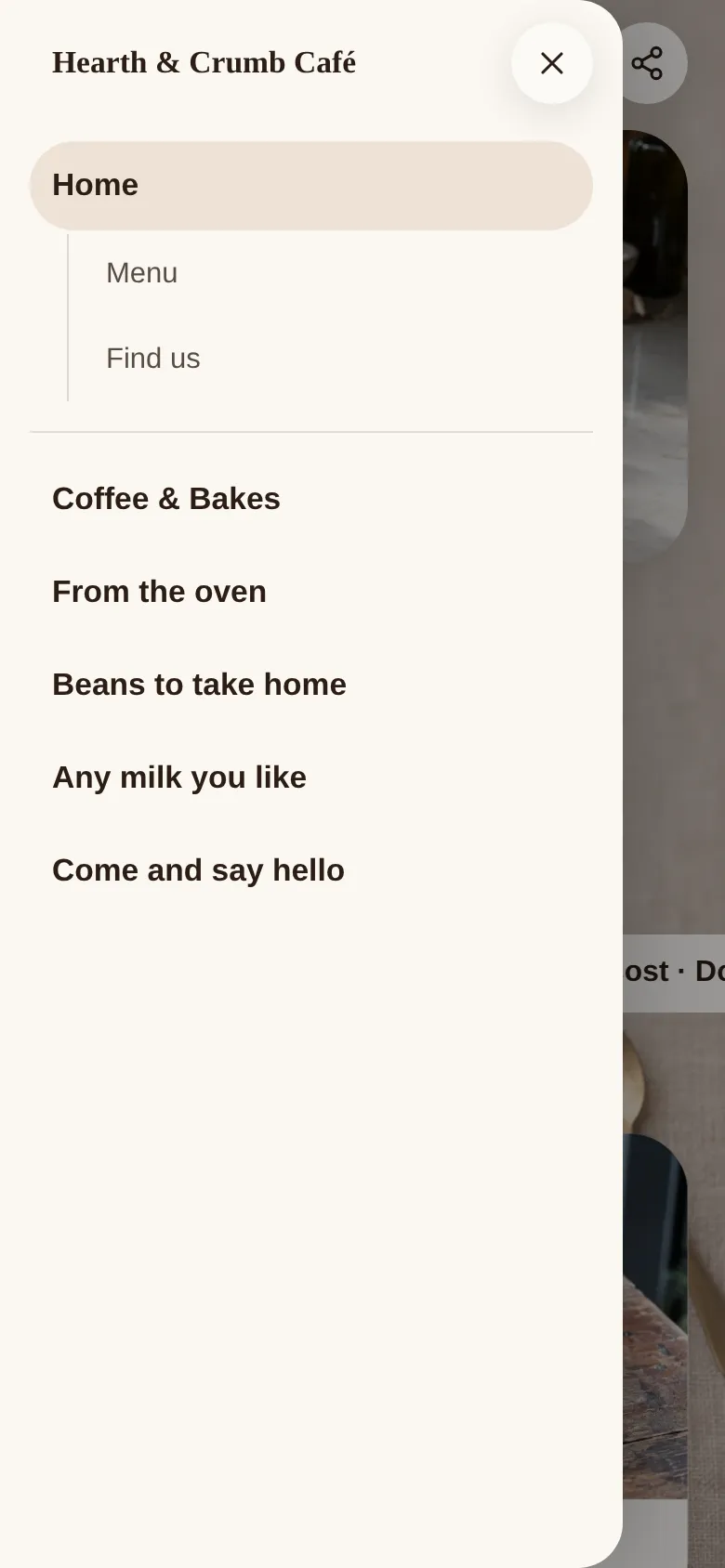
Tap the menu button in the top left corner and a side menu slides in. Home is always first. If you’ve added a nav block, your sections are listed under Home, and tapping one scrolls straight to it.
Below that is everything on your page that opens, in the same order as your page, each one named by its title. There’s nothing to set up. Add a product and publish, and it’s in the menu. Move it higher on your page, and it moves up the menu too.
Each page has its own link and QR code
Every one of these pages lives at its own address, something like keepp.link/yourname/a1b2c3d4. The Share button at the top shares whichever page you’re on. On a phone it opens your share sheet. On a laptop it copies the link and shows a QR code you can print.
When that link lands in a chat, the preview shows that product’s own title and photo. So a post about one product can link straight to it, and a QR code on a table can open your menu and nothing else. Shareable links and QR codes for every block has more on that.
The back button does what people expect
Going back from a block’s page returns visitors to the exact spot on your page they tapped from. Forward takes them back to the block again. Someone who opens a shared link lands right on that block’s page, and the menu is how they find everything else you offer.
It’s on every Keepp page
Every published page with something that opens has the menu and its own pages. You don’t have to switch anything on. Here’s how it comes together as a multi-page website for a small business, and as a creator website. See structure a long page for exactly how the menu is put together, or claim your page at keepp.link and see it on your own.