Every Block on Your Page Has Its Own Shareable Link and QR Code
Not just your page, every product, booking, menu, and form on it has its own real URL and its own QR code, one tap away. No other tool in this category builds that into the block itself.
Most link-in-bio and creator-commerce tools give you one shareable thing: the page. Point people at it, and they scroll to find whatever you were actually talking about. A Keepp page works differently: the page itself is shareable, and so is every product, booking, menu, form, and card on it, each with its own real link and its own QR code, one tap away.
The page itself, first
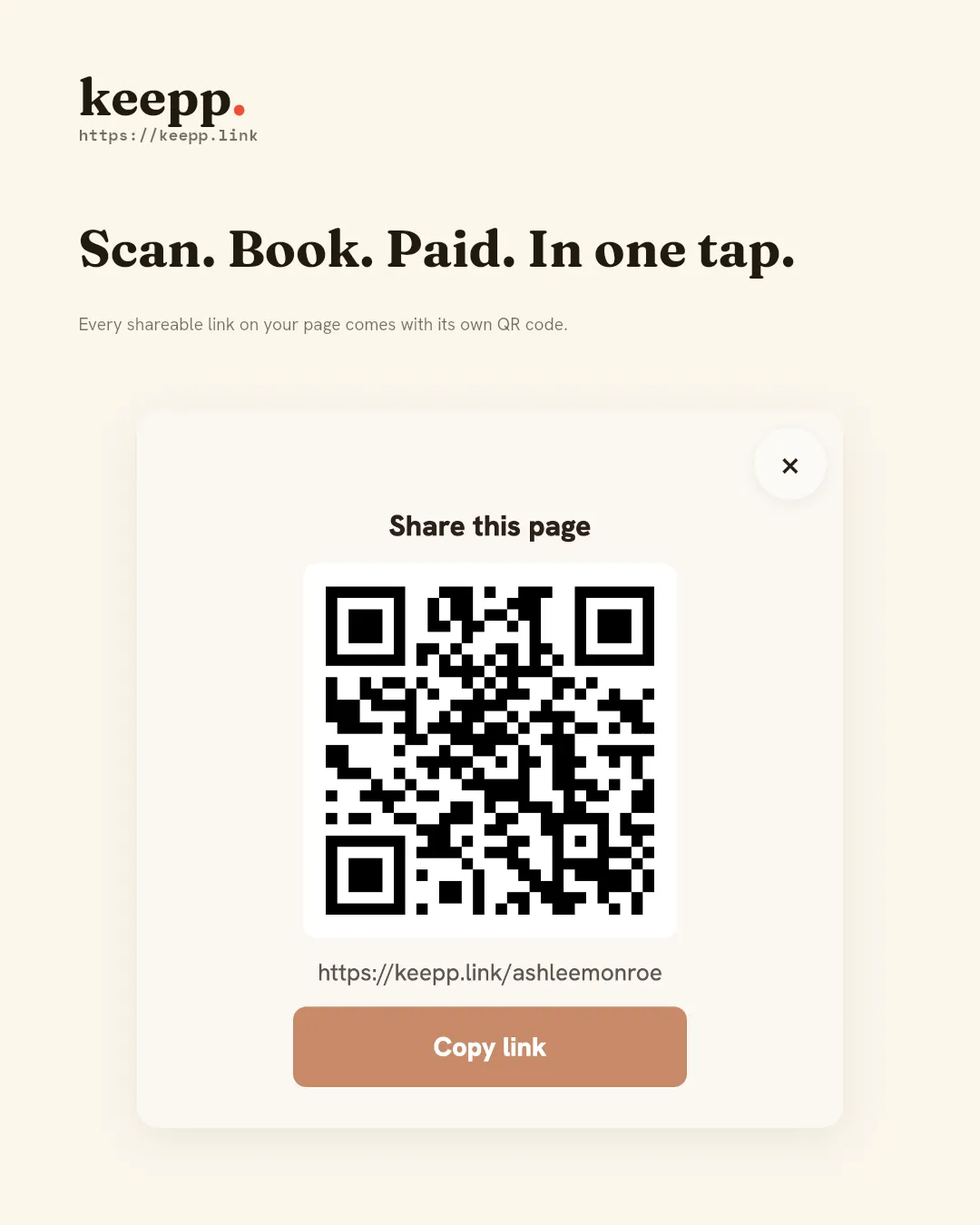
Every published page has a Share button in its header. Tap it on a phone and it opens your device’s native share sheet: Messages, WhatsApp, whatever you actually use. On desktop, it copies the link to your clipboard and opens a QR code you can point a phone at directly. That’s the baseline every page starts with: one link, one code, the whole page.
Then every block underneath it
This is the part most tools don’t have at all: tap a product, a booking offering, a menu, a form, a map, a YouTube video or a recommendation card, and it opens as its own page. Tap Share while you’re on it, and it doesn’t share your whole page. It shares a real, short link straight to that one block: keepp.link/yourhandle/a1b2c3d4, which opens directly on that block’s page, not the top of your page.
Tap it on mobile and the same native share sheet opens, this time carrying the block’s own link. On desktop, the same copy-plus-QR pattern happens: except the QR code encodes that one product’s link, not your homepage’s.
The link preview shows the right thing before anyone even taps it
Sharing a block’s link isn’t just about where it goes once someone clicks. It’s about what shows up the moment it lands in a chat. Paste a specific product’s link into Messages or WhatsApp, and the preview card that unfurls carries that product’s title, description, and photo, not your homepage’s. The same is true for a booking, a menu, a form, a map, or a video: whatever you shared is what shows up before anyone taps anything.
That preview is also aware of what’s actually live on your page right now. If a product is scheduled to launch later and someone somehow gets its link early, the preview won’t leak its title or photo. It falls back to your page’s own details instead, exactly matching what a visitor would actually see if they opened the link at that moment. A held-back launch stays held back, link preview included.
Forms get this too, not just things for sale
A form block (a lead capture, an application, a waitlist signup) gets exactly the same treatment. Its own page, its own deep link, its own QR code. That means a specific intake form can be the only thing a QR code points to: a “book a consult” flyer at an event that opens straight to the qualifying form, not your whole page with the form buried three scrolls down. Collecting leads and feedback covers setting one up; once it’s live, sharing it directly works the same way as any other block.
What this looks like printed
A QR code that opens your whole page is fine on a business card. It’s the wrong tool the moment you want someone to land on one specific thing:
- A menu QR code that opens straight to that menu block: not the homepage, not a PDF download, the actual live menu with current prices.
- Packaging or a thank-you card with a QR code pointing at the exact product someone just bought, so a repeat order is one scan away instead of a search.
- A table tent or flyer at an event pointing at one specific booking offering, “scan to book a session today”, instead of a generic page link that makes someone hunt for the right button.
- A “request a quote” or intake form printed on a service van, a storefront window, or a business card, scannable straight into the form itself.
Because every one of these is a real, stable URL, not a temporary session link, it keeps working printed on something physical for as long as the block exists on your page.
Why this works without slowing your page down
The QR encoder itself is a separate file, not baked into every page load. It only downloads the first time anyone actually taps Share. The vast majority of visitors never share anything, so they never pay for a feature they don’t use; the cost only shows up for the person actually using it, right when they need it.
Bookmarkable without even tapping Share
Opening any block updates the browser’s address bar automatically, whether or not anyone taps the Share button. That means the URL bar and the back button always reflect exactly what’s open: someone can bookmark a specific product mid-browsing, or hit back and land exactly where they were on your page, without you configuring anything for that to work.
Nobody else in this category builds it into the block itself
Linktree’s QR code is for your whole profile only: their own product surfaces this explicitly, and getting a QR code for one individual link means pulling in a third-party generator and pasting the URL in yourself. Gumroad gives each product its own real URL, which is a start, but there’s no built-in QR code feature at all: same story, a separate external tool. Beacons has a general-purpose QR generator that can point at any URL you give it, but it’s a standalone utility you visit and paste a link into, not a button living inside the product itself.
The common thread: elsewhere, an individual item’s QR code, if you can get one at all, is a manual, multi-step detour through a different tool. On a Keepp page, it’s the same one-tap action as sharing the whole page, just aimed at whichever block you’re actually looking at.
Common questions
Does the individual block’s link expire or change? No. It’s tied to the block itself, not a temporary session. It keeps working for as long as that block exists on your page, which is what makes it safe to print on something physical.
Can I get the QR code without triggering the share sheet on my phone? Yes: on desktop, tapping Share always shows the QR code directly instead of opening a mobile share sheet, so you don’t need a phone to grab the code for printing.
Does this work for a card that just links out to an external store? Yes: every card opens as its own page first, with the outbound link as a button on it, so it gets the same shareable deep link and QR code as any other block. The share points at your card’s own page, not directly at the external site.
Do visitors need to do anything for this to work? No, every block’s page has the Share button already there. There’s no setup, no toggle, no separate QR tool to visit.
Setting it up
There’s nothing to configure: every product, booking, menu, form, map, and card gets this automatically the moment it’s on your page. To use it:
- Tap the block on your live page. It opens as its own page.
- Tap Share at the top: mobile opens your device’s share sheet, desktop copies the link and shows a QR code.
- Print the QR code, paste the link in a DM, or drop it in a caption. It points straight at that one block, permanently.
Where to start
A page is one link. Every real thing on it can be its own. Claim your page at keepp.link: free to start, and every block you add is shareable and scannable from day one.
Claim your page at keepp.link: free forever, no card required.