Where to Find Photos for Your Link in Bio Page Without Stock Sites
Looking for images for your link in bio page? Keepp has a free gallery of backgrounds and block images built into the editor, grouped by business type and already cut to the shapes your page uses.
If you’ve ever built a link in bio page, you know the routine. You open a stock photo site, type “coffee” or “yoga”, scroll through two hundred pictures that all look like adverts, find one that’s close enough, then go and read the license to check you’re actually allowed to use it on a page that sells things. Then you download it, upload it, and discover the card crops the interesting half away.
Keepp’s editor has a gallery built in for exactly this, so the searching happens where you’re building the page.
Why stock photos are awkward on a link in bio page
Most stock libraries were put together with blog headers and slide decks in mind, and a link in bio page is read on a phone, in a narrow column. A background has to sit behind a stack of buttons and text without fighting them, which rules out most busy, high-contrast photos. Cards and product tiles crop to fixed shapes, so a landscape photo that looks great on a laptop becomes a strip of ceiling in a tall card.
And licensing gets vague the moment money is involved. Plenty of “free” images come with conditions about commercial use or credit lines, and nobody wants to find that out after the page is live.
The Keepp gallery: pictures grouped by business
In the Keepp editor, every place that takes an image has a Pick from gallery button beside Upload. That covers the page background, card images, links, menus, forms, and the photos on products and bookable offerings.
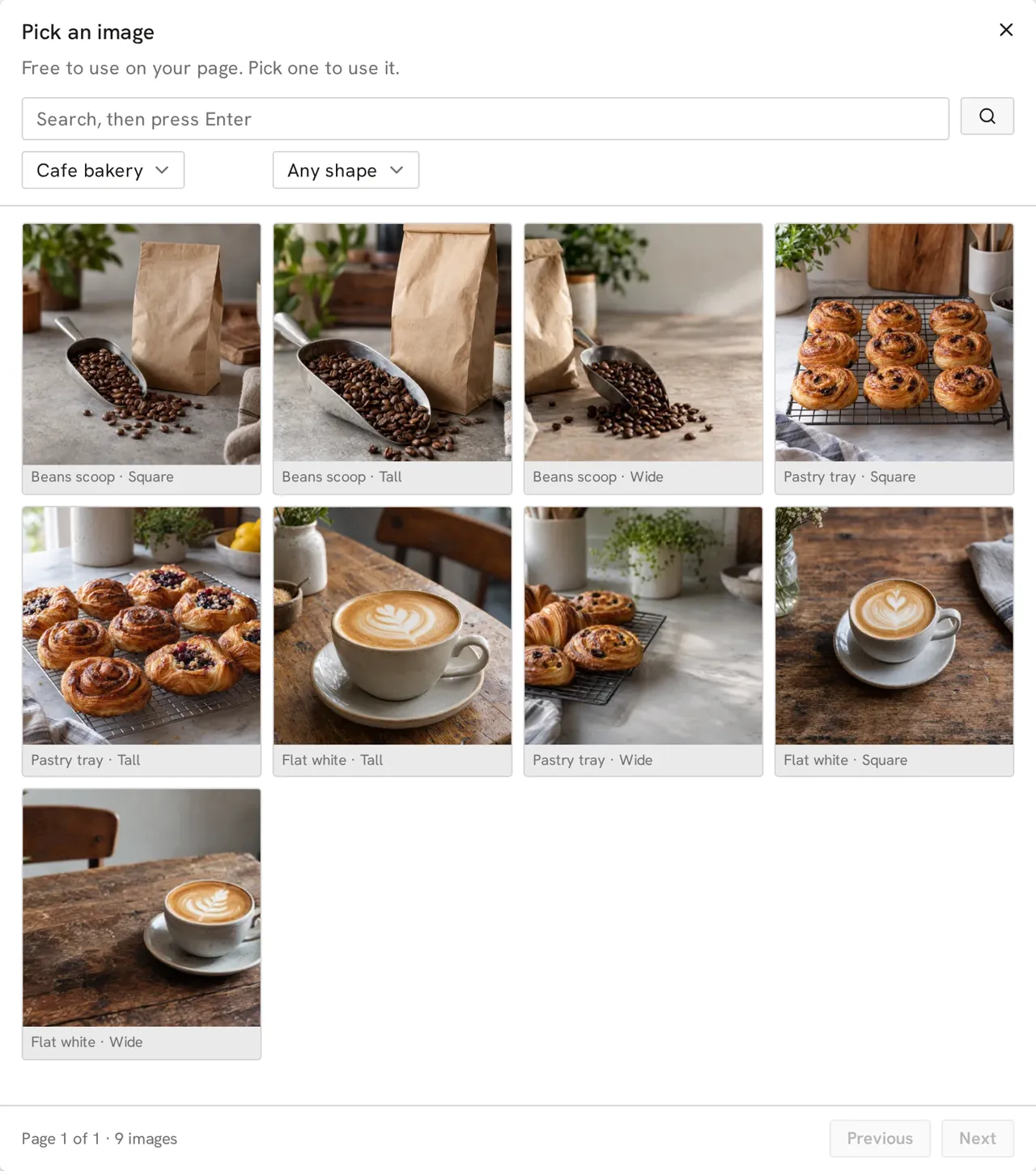
Images for blocks are sorted by the kind of business they’re for. Choose cafe and bakery and you get coffee beans and pastry trays. Choose real estate and it’s front doors, staircases, keys on a worktop and empty rooms full of light. There are sets for salons and skincare, rentals and holiday stays, yoga and wellness, fitness, photography, music, podcasts, coaching, plants and gardens, and a lot more, plus pictures made for sign-up, enquiry and feedback forms.
Everything in it is free to use on your Keepp page, and new images are added every day.
Already the right shape
Keepp cards and product tiles come in three image shapes, wide, square and tall, and every block image in the gallery comes in all three. Open the gallery from a tall card and it starts on tall pictures, so nothing important gets cropped off.
Backgrounds are all tall, sized for a phone screen, and composed with a calm stretch for your text to sit on. You can filter them by mood, color, light or dark, and style, so finding something moody and dark for a music page, or soft and light for a wellness page, takes a couple of clicks.
A few tips for choosing images
Match the shape to the card. If your cards are set to tall, use tall images. The gallery helps by opening on the card’s shape, but it’s worth keeping in mind when you change a card later.
Keep the background quiet if your page is wordy. A page with lots of text reads better over a soft texture than over a photo with a subject in it. The gallery’s light and dark filter is a quick way to narrow that down, and the background settings have a veil option that tints the image behind your text.
Let one style run through the page. Pictures from the same business set tend to share a look, and a style preset keeps your cards and buttons consistent around them. Between the two, the page ends up looking planned.
Use your own photos for what you actually sell. A buyer looking at a product wants to see the one they’d actually get, so upload those. Then fill in the rest from the gallery: the background, the header card, the “how sessions work” card, the form at the bottom of the page.
No downloading, no re-uploading
When you pick an image from the gallery, it goes straight onto your page. There’s no file to download and nothing to upload again, because the image is already hosted, at the same quality as anything you upload yourself. Change your mind and you can pick another, or swap it for your own photo whenever you have one.
If your page has a few empty image spots right now, open the editor and click Pick from gallery on one of them.