Free Images for Your Page, Right Inside the Keepp Editor
Every image spot in the Keepp editor now has a Pick from gallery button: backgrounds, card images, product photos and more, searchable by business type, shape, mood and color, and ready to use in one click.
Pictures are most of what makes someone stop and tap on a page, and most people building one for the first time run out of them about ten minutes in. Usually it’s the second card, when they realise they don’t have a nice photo of their consulting session or their studio’s front door.
So the editor now has a gallery built in. Next to every Upload button where your page takes a picture, there’s a Pick from gallery button. Open it, find something that fits, click it, and it’s on your page.
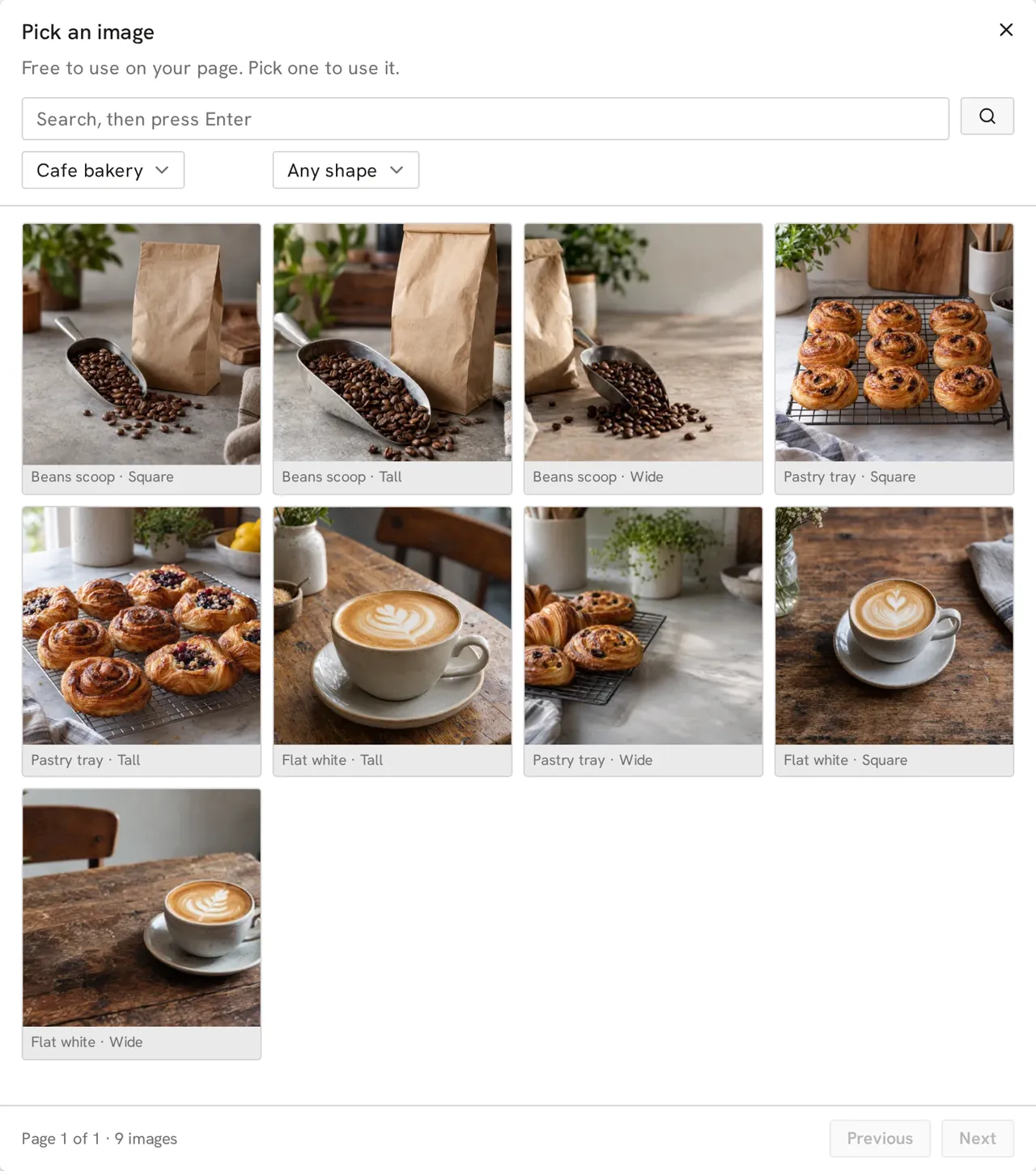
Where the gallery shows up
Anywhere you’d normally upload an image:
- Page backgrounds. In Page style, set the background to Image and the button sits right under the upload.
- Block images. Cards, links, menus and forms all get it next to their image field.
- Product and offering photos. When you create a product or a bookable offering, the Photos section has it too, and the photo follows that product onto every place it appears on your page.
Your own uploads still work exactly as before. The gallery just means you’re never stuck waiting on a photoshoot before you can publish.
Finding the right picture
There are two galleries, because a background and a card image want very different pictures.
Images for blocks are grouped by the kind of business they suit. Pick a business from the filter, say cafe and bakery, salon and beauty, real estate, yoga and wellness, fitness, photography or coaching, and you get pictures that belong on that page: coffee beans and pastry trays for the cafe, or front doors, staircases and keys on a worktop for the letting agent. There are also images made for forms, like a clipboard or a suggestion box, which work for a sign-up or feedback form on any page.
Backgrounds filter by mood (calm, luxe, playful, retro), by color, by light or dark, and by style, from photographic textures to riso prints and watercolour. They’re all tall, made for a phone screen, and composed with a quiet area where your text sits, so blocks stay easy to read over them.
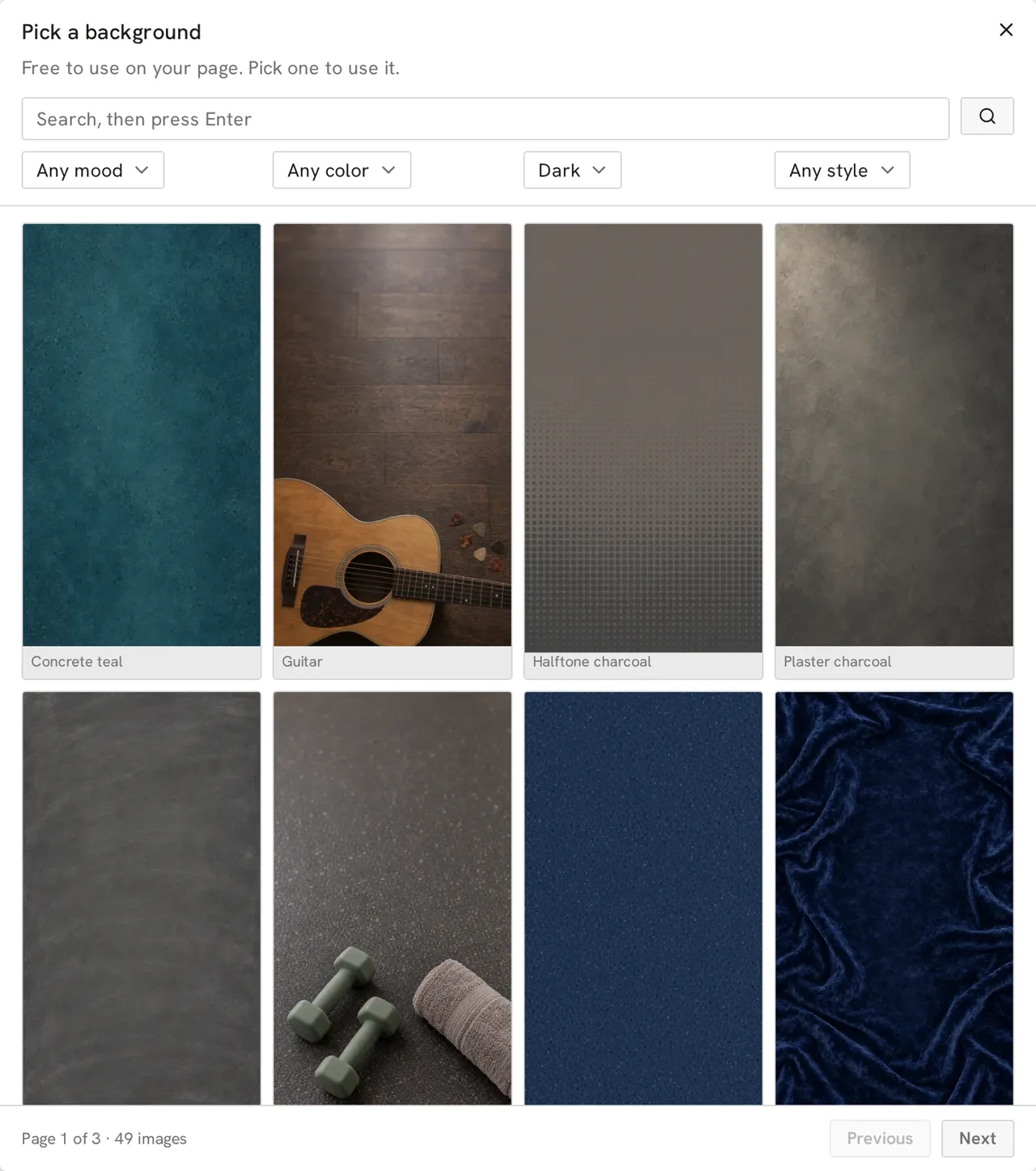
You can also just type what you’re after and press Enter, “coffee” for a cafe page or “velvet” for a background.
Pictures that already fit the block
Cards, products and offerings on a Keepp page come in three image shapes: wide, square and tall. Every block image in the gallery exists in all three, and when you open the gallery from a card that’s set to tall, it opens on tall images already. That’s the part that usually goes wrong with a downloaded photo: you find something you love, and the card crops the top of it off.
Pair it with a style preset and a page can go from empty to finished-looking in one sitting. Pick a preset for how your cards and buttons look, drop in a background, then fill the cards from the gallery wherever you don’t have your own photo yet.
Free to use, and it keeps growing
Everything in the gallery is free to use on your Keepp page. Picking one doesn’t download or upload anything: the image is already hosted, so it goes straight onto your page at the same quality as your own uploads.
New images are added every day, so if you don’t see the one you want this week, check back. If you have photos of your actual products, use those, since buyers like seeing the real thing. The gallery is for everything around them: the header image, the background, the “about my sessions” card, the form at the bottom.
Open the editor, click any image spot, and try Pick from gallery.