Networking Without Paper: Using a Digital Business Card at Events
How to share your details at a conference, meetup or market with a digital business card in your phone's wallet. What to put on it, what the QR code should open, and how to follow up.
The quickest way to swap details at an event is a QR code the other person scans with their phone camera. Keep it on a digital business card in Apple Wallet or Google Wallet, so it is one press of a button away, and point the code at the thing you want them to do next: book a call, join a list, or see your work. Keepp’s digital visiting card is built for exactly this, and you can see afterwards how many people scanned it.
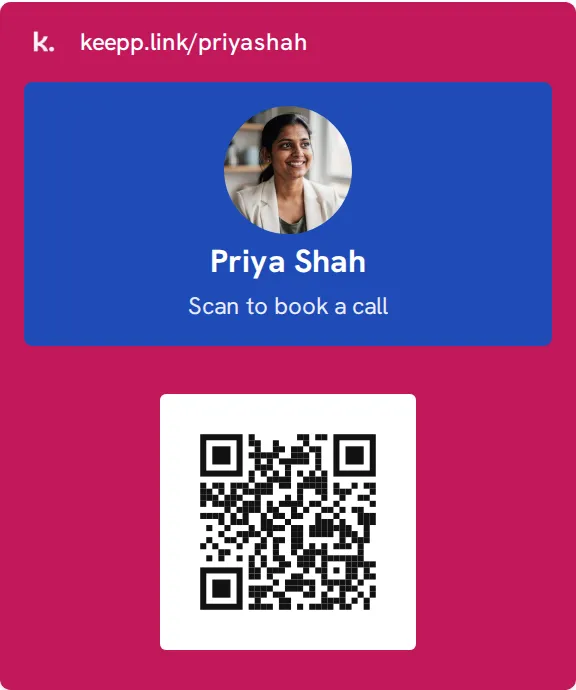
Why a wallet card works better at events
At a conference, the moment to swap details is short. Someone is about to walk to the next talk. Fishing for a paper card, or opening an app and finding the right screen, takes longer than the moment lasts.
A card in Apple Wallet or Google Wallet opens from the lock screen. On an iPhone, double-press the side button and it is there. You turn the phone around, they point their camera at it, and your page is on their phone. Nobody types an email address with one thumb in a crowded hallway.
What to put on your card
The front has room for your photo, your name and one line. Use that line to say what you do and what to do next:
- “Brand photographer · Book a shoot”
- “Pilates coach · First class free”
- “Ceramics · Spring collection”
- “Product designer · Portfolio”
Your photo matters more than it seems. The person scanning will look at your card again tomorrow when they try to remember who you were. A face does that better than a logo.
Point the code at the next step
The code on a Keepp visiting card can open your page, or one specific thing on it. Think about what you want someone to do after the conversation.
Book a call. Point the code at your booking calendar. The person picks a time while you are still talking.
Join a waitlist. Point it at a signup form. Useful at launch events and trade shows.
Buy something. At a market or a pop-up, point it at the product on the table. They pay on your page, through your own Stripe.
See your work. Point it at your page, with your portfolio, links and socials.
If you go to a lot of events, point the code at a custom link like keepp.link/yourname/hello. Before each event, change what hello opens. Your card stays the same.
Sending your details after the event
Some people will ask you to send your details instead. Turn your card over in Wallet and tap your page address. Your page opens with its share sheet, so you can send your link through any messaging app, or copy it. They get your whole page, with your latest work on it.
Following up
Every scan of your visiting card is counted. In Analytics, the QR code scans panel shows your visiting card on its own line, so you can see how many people at an event went on to open your page. If you use a different custom link per event, each one gets its own count.
If your code opens a form, the people who filled it in are in your submissions with their details. That is a follow-up list you did not have to type up.
An event checklist
- Update your page before you go: what you are offering, any event discount, your latest work.
- On the QR codes page, set the code to open the thing you want people to do, and write your caption.
- Add the card to Wallet again so it has your latest page.
- Print a 5 cm code for your table or badge too, from the same page, for people across the room.
- After the event, check QR code scans and your submissions.
Common questions
Do people need an app to scan my card? No. Any phone camera reads the QR code and opens your page in the browser.
Does it work if the other person has an Android phone and I have an iPhone? Yes. They only need a camera. Your card is in your Wallet, their phone just reads the code.
What if there is no signal at the venue? Your card opens from Wallet without a connection. The person scanning needs a connection to open your page, so they can scan now and open it later.
Can I have a different card for each event? You can add the card again with a different caption or target whenever you like.
Get started
Read Digital business card for Apple Wallet and Google Wallet for what is on the card, or go straight to Add your visiting card to Wallet.