Find Your Orders and Bookings on Keepp
Bought something or booked a slot through a creator's Keepp page? Here's how to pull up that order, reschedule or cancel a booking yourself, and see everything you've ordered in one place.
You booked a session with a coach, or bought a guide from a creator, and the page you did it on was a Keepp page. Now you want to check the details, move the appointment, or find the receipt.
Everything about that order lives on a page of its own, and you have two ways in.
The quickest way: the link in your confirmation email
When you book or buy, you get a confirmation email with a link to that exact order. Open it and you land on the order itself, no password, no account to create.
That page shows you what you ordered, the date and time, the price, anything you filled in at checkout, and the seller’s refund, terms and support details.
Keep that email. It is the fastest route back to that order, and it keeps working.
Everything you’ve ordered, in one place
To see every order you’ve placed through Keepp, across every creator you’ve bought from, go to keepp.link/orders.
Enter the email address you used, and Keepp sends you a six-digit code. Type it in and your orders appear, newest first, bookings and purchases together. The code is how Keepp knows it’s you: only the person who can open that inbox can see the list.
If you arrived from one of your order links, it’s quicker still: the code goes to the address already on that order, so there’s nothing to type but the six digits.
Each order shows the creator you bought from, the date, and where it stands. Tap one to open it.
One thing worth knowing: the list is built from the email address you signed in with. If you used a different address for a particular order, sign in with that one to see it. The address on the confirmation email is always the right one.
Moving or cancelling a booking
Open the booking and you’ll find Reschedule and Cancel booking at the bottom of the page.
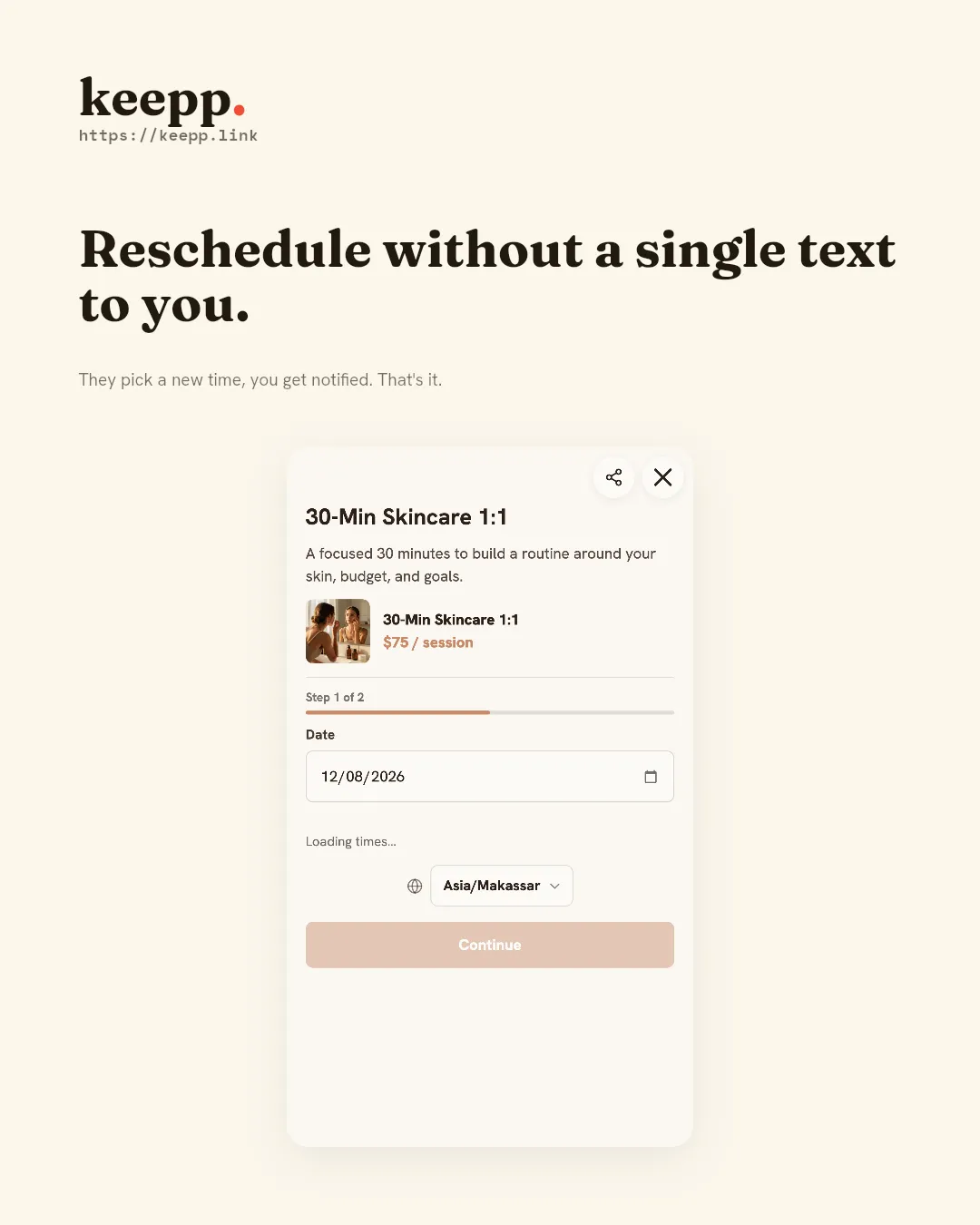
Reschedule shows you the creator’s real availability, so the times you can pick are times they genuinely have free. Choose a new slot and the booking moves: their calendar updates at the same moment, and you both get an email confirming it.
Cancel shows you the creator’s refund policy first, so you can read their terms before you decide. Cancelling frees the slot straight away and lets the creator know automatically.
Money is separate from the booking itself: the creator you bought from handles any refund, through their own payment account and their own policy. If you’re owed one, their support details are right there on the page, and replying to your confirmation email reaches them too.
Your purchases
A purchase page is your record of the order: what you bought, what you paid, when, and anything the creator sent you with it: a download link or instructions, for example.
Changes and refunds for a purchase go to the creator, so their support contact and refund policy sit on that page for exactly that reason.
In short
- The link in your confirmation email opens that order directly.
- keepp.link/orders shows everything you’ve ordered, with a code sent to your email.
- You can reschedule and cancel bookings yourself, against the creator’s live availability and stated policy.
- The creator you bought from handles refunds and any question about the order itself.
Are you the one selling? Keepp gives you one page for your products, bookings and forms, with checkout built in. Take a look.